Back Up Docker Volumes with one command and a temporary container. Docker doesn’t do it automatically, and any data written inside a container disappears with it if there’s no volume backing it up. This guide covers one job: creating a backup you can restore from later.
How Docker volume backups work
You can’t reliably copy the files in /var/lib/docker/volumes/ directly while containers are running, a database mid-write will produce a corrupt backup. The safe method is to spin up a temporary container, mount the volume into it, and use tar to create an archive. The container gives you a clean, controlled way to read the volume contents.
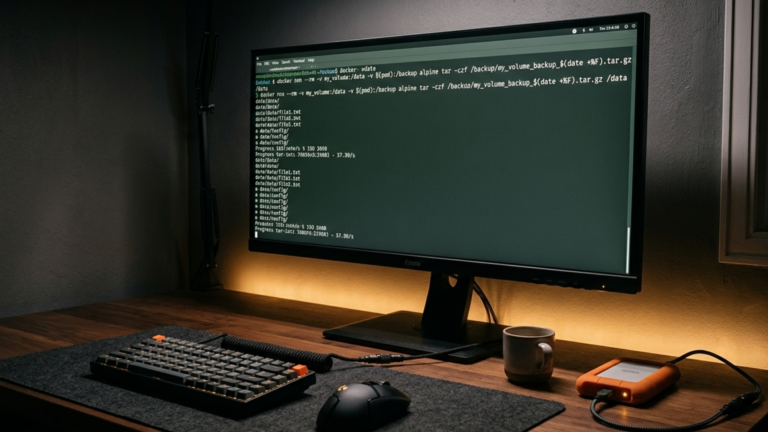
Back up a volume
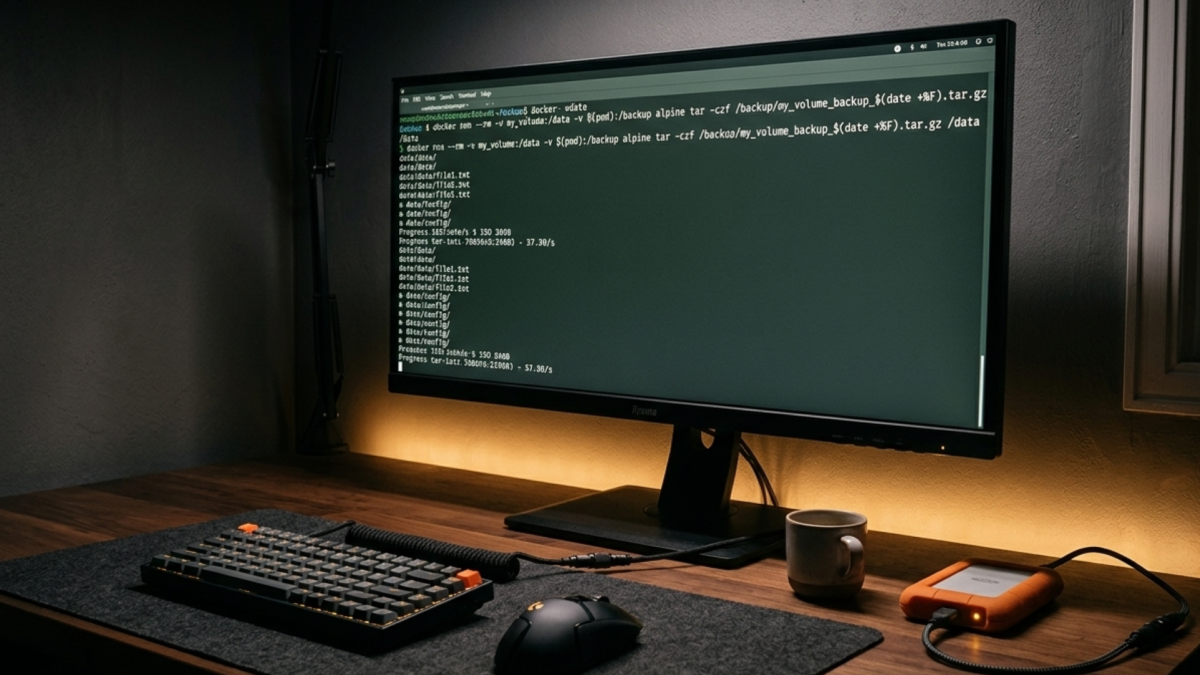
docker run --rm \
  -v your_volume_name:/data \
  -v $(pwd):/backup \
  alpine \
  tar czf /backup/your_volume_name_$(date +%Y%m%d).tar.gz -C /data .
--rm removes the temporary container when it finishes. -v your_volume_name:/data mounts the volume you want to back up. -v $(pwd):/backup mounts your current directory so the archive is saved there. tar czf creates a compressed archive of everything in the volume, and -C /data . tells tar to archive from inside the mounted volume rather than from the root.
The backup file appears in your current directory when the command finishes. To find your volume names first:
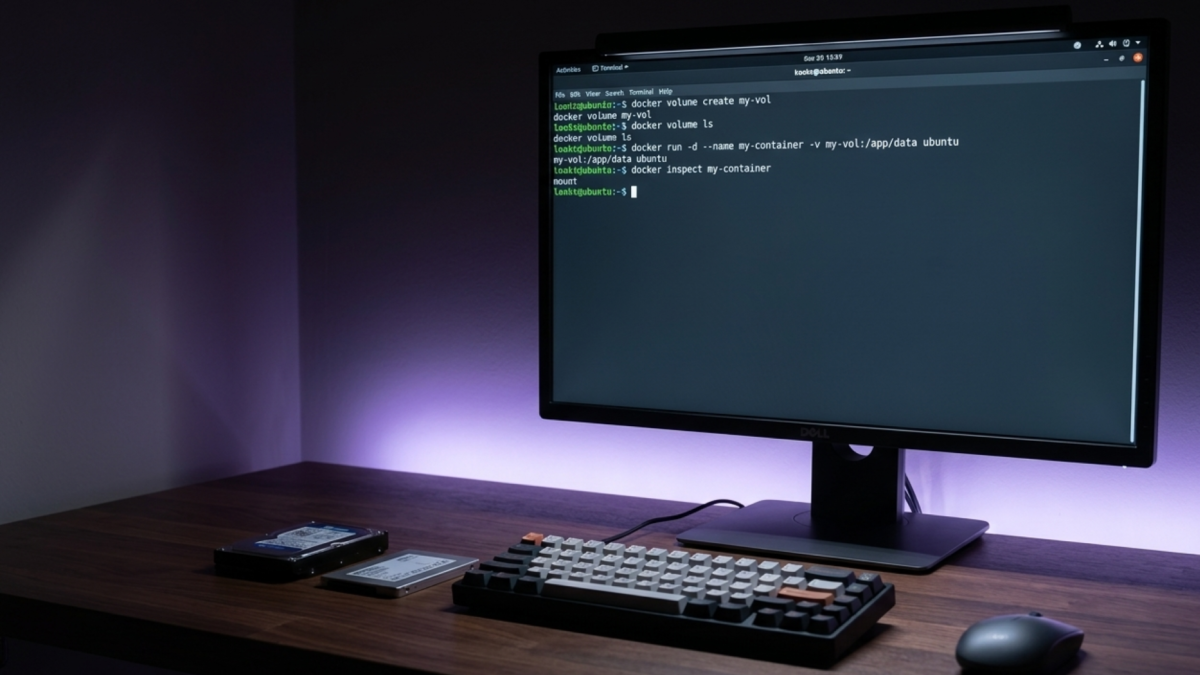
docker volume ls
Restore a volume from backup
Create the volume if it doesn’t exist yet:
docker volume create your_volume_name
Then restore:
docker run --rm \
  -v your_volume_name:/data \
  -v $(pwd):/backup \
  alpine \
  tar xzf /backup/your_volume_name_20240115.tar.gz -C /data
Verify the contents before starting your container:
docker run --rm -v your_volume_name:/data alpine ls -la /data
Databases need extra care
Backing up a database volume while the database is running risks catching it mid-transaction. The simplest approach is to stop the container first, which causes brief downtime but guarantees a clean backup:
docker stop your_db_container
# run the backup command
docker start your_db_container
If downtime isn’t an option, use a database dump instead. The output is a clean SQL file with no risk of catching a mid-write state:
# PostgreSQL
docker exec your_postgres_container pg_dumpall -U postgres > postgres_backup_$(date +%Y%m%d).sql

# MySQL
docker exec your_mysql_container mysqldump --all-databases -u root -p"$DB_PASSWORD" > mysql_backup_$(date +%Y%m%d).sql
A dump file is often easier to restore from than a raw volume backup and works across container versions.
Automate it with cron
Save the backup command in a script:
# /home/user/backup-volumes.sh
docker run --rm \
  -v your_volume_name:/data \
  -v /backups/docker:/backup \
  alpine \
  tar czf /backup/your_volume_name_$(date +%Y%m%d_%H%M%S).tar.gz -C /data .
Then add it to crontab with crontab -e:
0 2 * * * /home/user/backup-volumes.sh
This runs the backup daily at 2am. Make sure /backups/docker exists on the host before the first run.
If something’s wrong
Backup file is empty or tiny: Check that the volume name is correct with docker volume ls and that the volume actually contains data docker run --rm -v your_volume_name:/data alpine ls /data.
Restore looks right but the app doesn’t work: The archive may have been created from inside a subdirectory. Check the path structure first: tar tzf your_backup.tar.gz | head -20.
Database still corrupt after restore: The original backup was taken while the database was running. Use a dump next time. For now, check if an older backup exists or restore from a dump if you have one.
The Takeaway
Back up a Docker volume by mounting it into a temporary Alpine container and archiving the contents with tar. The backup is a standard .tar.gz file that you can restore the same way. For databases, stop the container first or use a dump command to avoid capturing the volume mid-write.