The “GPU not detected in Docker” error appears when Docker lacks the bridge required to pass GPU access from the host into a container. Docker containers are isolated from hardware by default. They share the host kernel but cannot reach devices like a GPU unless a runtime layer is explicitly installed and configured. Without it, commands like docker run --gpus all fail immediately or the container starts with no GPU visible inside.
This post walks through the fix for Ubuntu and Debian systems.
Why Docker Cannot See the GPU
Running docker run --gpus all without any setup produces this error:
docker: Error response from daemon: could not select device driver "" with capabilities: [gpu].
Docker is not broken. It is working as designed. It simply has no driver to hand off GPU requests to. The NVIDIA Container Toolkit is what fills that gap. It installs a container runtime library that mounts the GPU devices and drivers into any container that requests them.
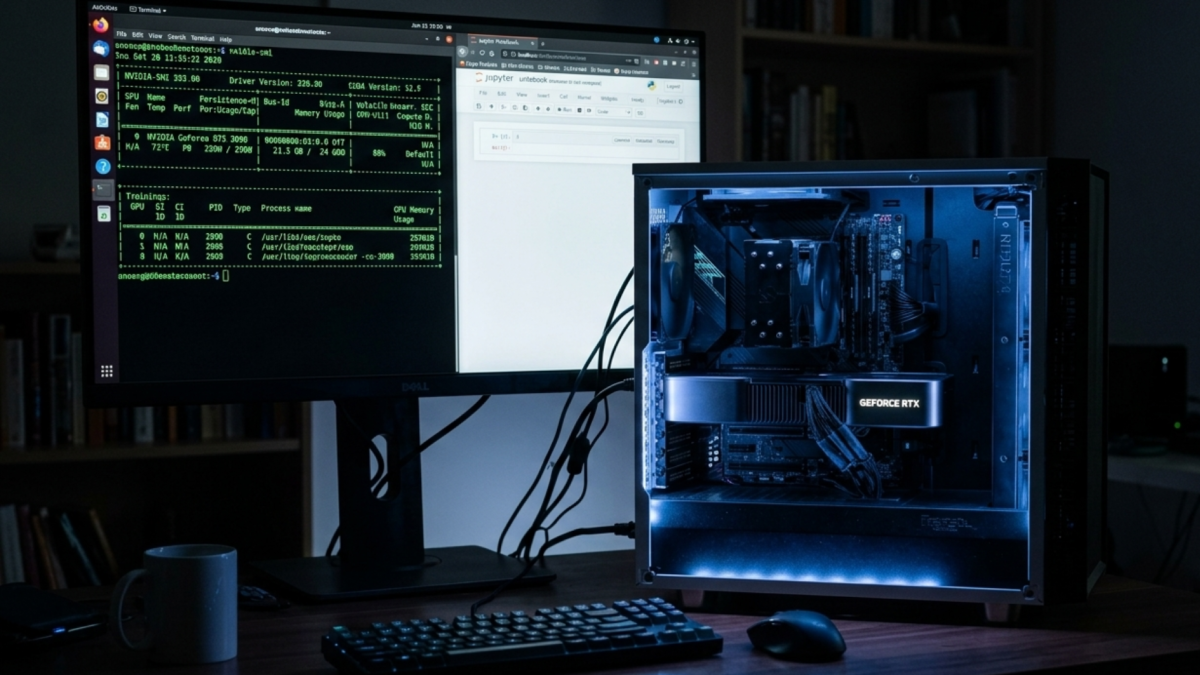
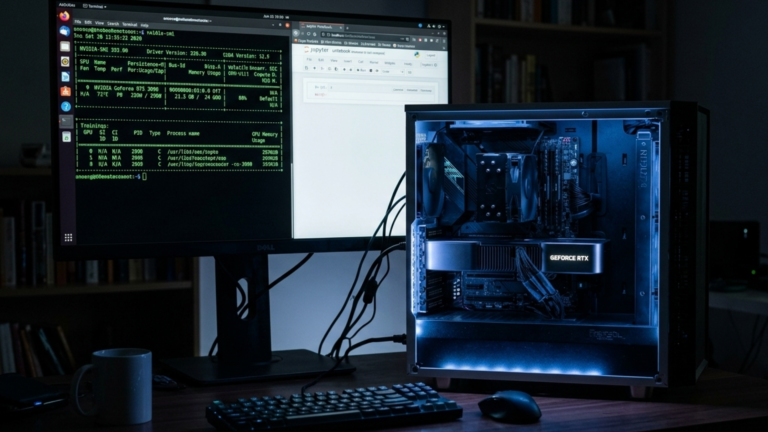
Before touching Docker, confirm the host GPU is functional. Run nvidia-smi directly on the host. If that command fails or returns no devices, the issue is at the driver level, not Docker. Install the correct NVIDIA driver for your Linux distribution first and return to this guide once nvidia-smi produces a valid output on the host. If you have not yet installed Docker, see How to Install Docker on Linux.
Step 1: Add the NVIDIA Package Repository
The toolkit is distributed through NVIDIA’s own apt repository. Add the GPG key and the repository source with a single command:
curl -fsSL https://nvidia.github.io/libnvidia-container/gpgkey | sudo gpg --dearmor -o /usr/share/keyrings/nvidia-container-toolkit-keyring.gpg \
  && curl -s -L https://nvidia.github.io/libnvidia-container/stable/deb/nvidia-container-toolkit.list | \
    sed 's#deb https://#deb [signed-by=/usr/share/keyrings/nvidia-container-toolkit-keyring.gpg] https://#g' | \
    sudo tee /etc/apt/sources.list.d/nvidia-container-toolkit.list
This command pulls from the NVIDIA Container Toolkit repository. Visit the repo to verify the latest install instructions or check for distribution-specific notes.
Then update the package list:
sudo apt-get update
Step 2: Install the Toolkit
sudo apt-get install -y nvidia-container-toolkit
This installs the runtime library and the nvidia-ctk configuration utility.
Step 3: Configure the Docker Runtime
The toolkit ships with a utility that writes the required runtime configuration into Docker’s daemon config file automatically. Run it:
sudo nvidia-ctk runtime configure --runtime=docker
This adds the nvidia runtime entry to /etc/docker/daemon.json. If that file did not exist before, it creates it. The result looks like this:
{
    "runtimes": {
        "nvidia": {
            "path": "nvidia-container-runtime",
            "runtimeArgs": []
        }
    }
}
Step 4: Restart Docker and Test
Restart the Docker daemon to load the new configuration:
sudo systemctl restart docker
Now run a container that calls nvidia-smi inside it:
docker run --rm --gpus all nvidia/cuda:12.0-base-ubuntu22.04 nvidia-smi
If the fix worked, the output matches what the host returns when you run nvidia-smi directly. The GPU model, driver version, and CUDA version all appear from inside the container. This is the same setup required to run GPU-accelerated containers like Stable Diffusion WebUI.
If the Error Persists After Installation
If the toolkit is installed, but Docker still returns Unknown runtime specified nvidia, the nvidia-ctk step likely did not write to daemon.json correctly. Open the file manually:
sudo nano /etc/docker/daemon.json
Confirm the runtimes block exists. If the file is empty or missing the block entirely, paste the JSON from Step 3 above, save the file, and restart Docker with sudo systemctl restart docker.
One other common cause: the container image’s CUDA version is higher than what the host driver supports. A host running driver version 470 supports up to CUDA 11.4. Pulling an image built for CUDA 12 on that host will start the container but show no devices inside. Check the top-right corner of nvidia-smi on the host to see the maximum supported CUDA version, and match the image tag accordingly.
The Takeaway
The GPU not detected error in Docker is almost always caused by the NVIDIA Container Toolkit not being installed or not being registered with the Docker daemon. Installing the toolkit, running nvidia-ctk runtime configure, and restarting Docker resolves it in most cases.