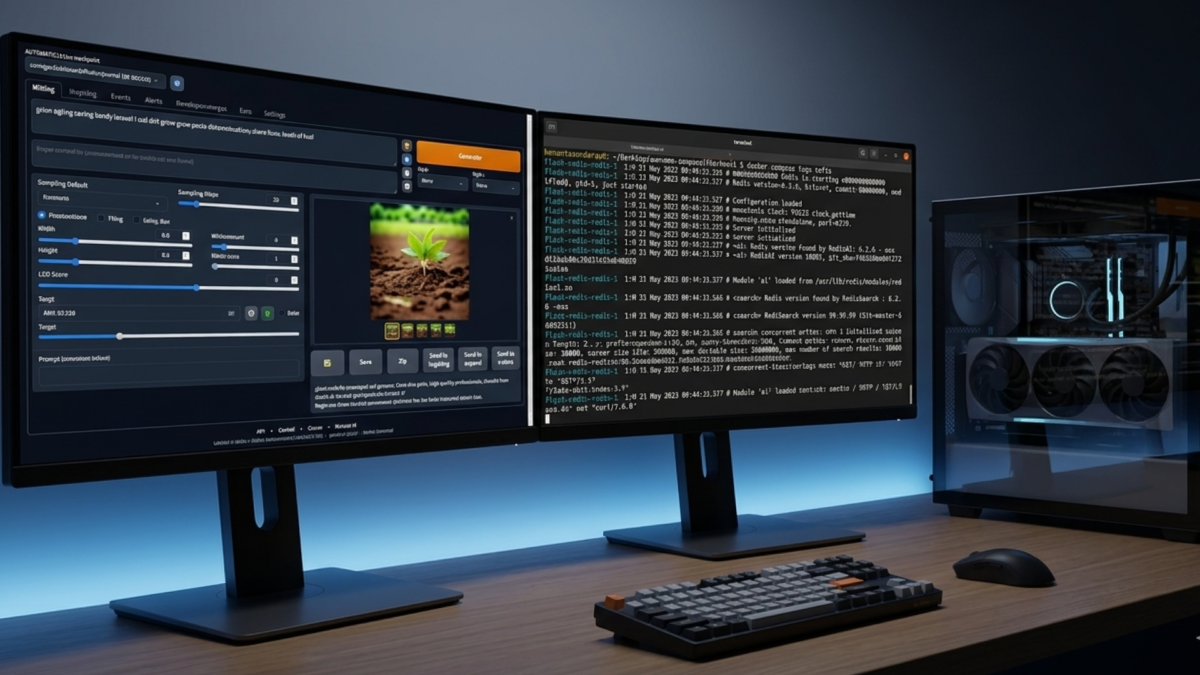
Stable Diffusion WebUI with Docker runs as a fully isolated container, no Python conflicts, no CUDA wrangling on the host. This guide covers one job: getting the container running so the interface opens in your browser.
If you’re not sure what Stable Diffusion WebUI is or what it can do, start with What is Stable Diffusion WebUI and How to Generate AI Images Locally first.
What you need
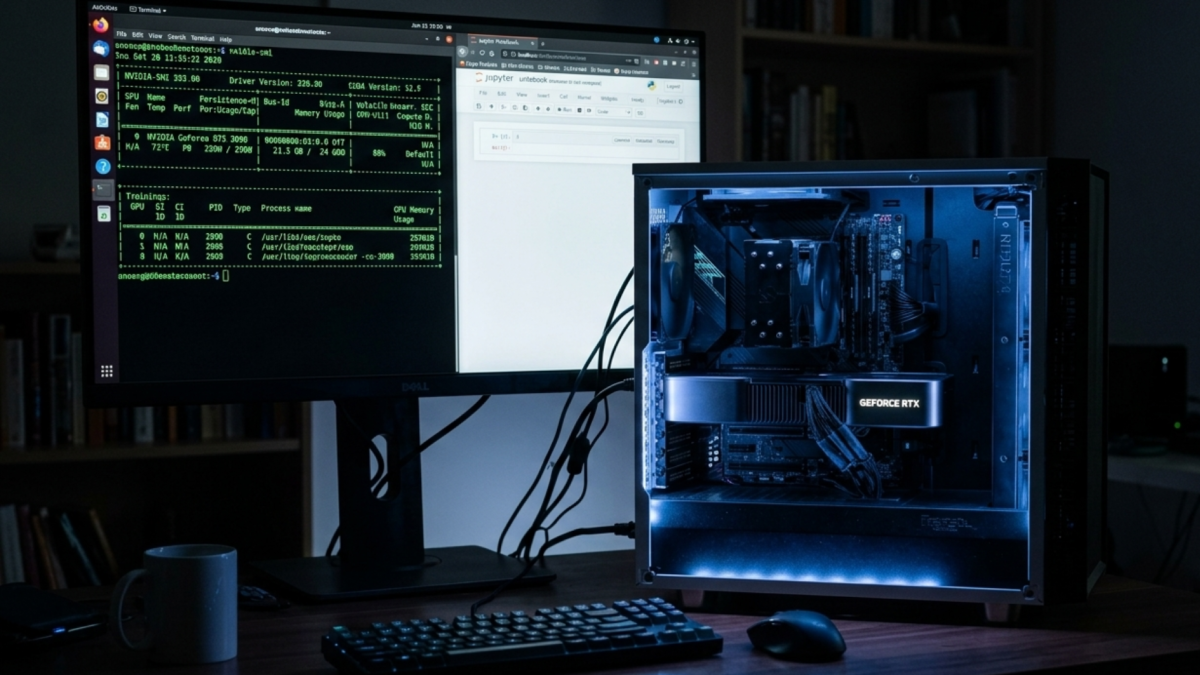
You need an NVIDIA GPU with at least 6GB VRAM and NVIDIA drivers installed on the host. Verify with nvidia-smi. Docker and Docker Compose must be installed on your Linux machine, and around 20GB of free disk space for the container, models, and outputs.
Step 1: Install the NVIDIA Container Toolkit
Docker cannot access your GPU by default. The NVIDIA Container Toolkit bridges that gap.
distribution=$(. /etc/os-release;echo $ID$VERSION_ID)
curl -s -L https://nvidia.github.io/nvidia-docker/gpgkey | sudo apt-key add -
curl -s -L https://nvidia.github.io/nvidia-docker/$distribution/nvidia-docker.list | sudo tee /etc/apt/sources.list.d/nvidia-docker.list
sudo apt-get update && sudo apt-get install -y nvidia-container-toolkit
sudo systemctl restart docker
Verify GPU access before continuing:
docker run --rm --gpus all nvidia/cuda:12.0-base nvidia-smi
The nvidia/cuda image is published on NVIDIA’s Docker Hub page. Check there if you need a different CUDA version to match your drivers.
You should see your GPU listed. If you don’t, stop here. The NVIDIA drivers on the host need fixing before Docker can help.
Step 2: Clone the setup repository
git clone https://github.com/YanWenKun/sd-webui-docker-base.git
cd sd-webui-docker-base
The sd-webui-docker-base repository is a maintained Docker setup for the AUTOMATIC1111 WebUI. Check it for the latest image tag before pulling.
Step 3: Start the container
docker compose up --detach
On first launch, the container downloads the WebUI code, a base model, and all Python dependencies into a ./storage folder in the current directory. This takes 5–15 minutes. That folder is your persistent storage; every model you add and every image you generate lives there and survives container restarts.
Monitor startup progress:
docker logs sd-webui-base -f
Wait for this line:
Running on local URL: http://0.0.0.0:7860
Step 4: Open the WebUI
http://localhost:7860
The interface loads with a base model already selected. You’re running Stable Diffusion WebUI in Docker with full GPU acceleration.
If something’s wrong
GPU not being used: Re-run the nvidia-smi Docker test from Step 1. If that fails, the toolkit installation didn’t complete.
Can’t reach localhost:7860: Run docker ps to confirm the container is running. Check the port with docker port sd-webui-base.
On WSL2: Use the WSL2 VM’s IP instead of localhost. Find it with ip addr show eth0 inside your WSL distribution.
The Takeaway
Stable Diffusion WebUI is now running in Docker with direct GPU access. The ./storage folder holds everything: models, outputs, and configuration, so the container itself is disposable. Update or replace it without losing anything.