Connecting n8n to Ollama for AI automation starts with a single credential point n8n at Ollama’s API port, select a model, and every workflow you build can send prompts to a local model without external APIs, token costs, or data leaving your server.
What You Need Before Starting
You need Ollama running in Docker and n8n running in Docker before starting.
How n8n Talks to Ollama
Ollama exposes a REST API on port 11434 by default. n8n connects to that API using the Ollama Chat Model node, a dedicated node that handles prompt formatting, model selection, and response parsing automatically.
The URL n8n uses to reach Ollama depends on how both containers are running. If they are on the same Docker network, n8n reaches Ollama by container name. If Ollama is running on the host outside Docker, a different address is needed. Both cases are covered below.
Step 1: Put Both Containers on the Same Network
If you set up Ollama and n8n in separate Compose files, they are on different Docker networks by default and cannot reach each other by container name.
The cleanest fix is to connect them to a shared external network. Create the shared network once:
docker network create ai-net
Add the network to your Ollama Compose file:
services:
  ollama:
    networks:
      - ai-net

networks:
  ai-net:
    external: true
Add the same network to your n8n Compose file:
services:
  n8n:
    networks:
      - ai-net

networks:
  ai-net:
    external: true
Recreate both containers to apply the change:
# In your Ollama directory
docker compose up -d

# In your n8n directory
docker compose up -d
Both containers are now on the same network and can reach each other by container name.
If Ollama is running natively on the host rather than in Docker, skip the network step. On Windows and macOS use http://host.docker.internal:11434 as the base URL. On Linux, add this under the n8n service in your Compose file and use the same address:
extra_hosts:
  - "host.docker.internal:host-gateway"
Step 2: Pull a Model into Ollama
n8n needs at least one model available in Ollama before the credential will show anything in the model dropdown.
If you have not pulled a model yet:
docker exec -it ollama ollama pull llama3.2
Confirm it is available:
docker exec -it ollama ollama list
Step 3: Add the Ollama Credential in n8n
Open n8n in your browser at http://localhost:5678. Go to Settings → Credentials → Add Credential, search for Ollama, and select it.
In the credential form, set the Base URL to http://ollama:11434 if both containers are on the same Docker network, or http://host.docker.internal:11434 If Ollama is running on the host.
Click Save. n8n tests the connection immediately. A green success indicator confirms n8n can reach Ollama. If it fails, check that both containers are on the same network and that Ollama is running with docker ps.
Step 4: Add the Ollama Chat Model Node to a Workflow
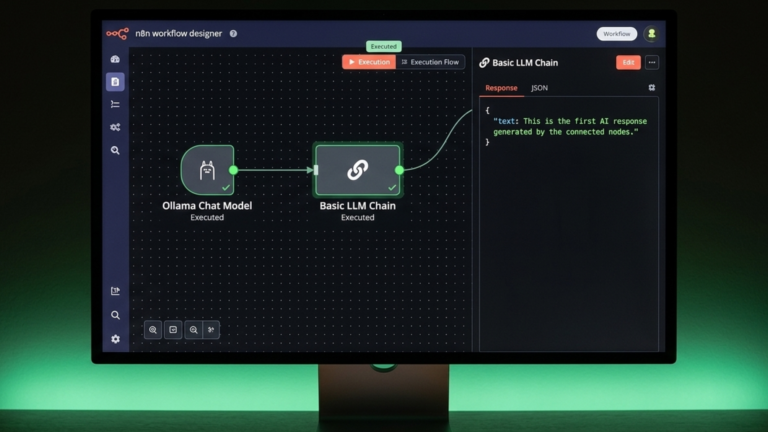
Create a new workflow in n8n. Click the + button to add a node and search for Ollama Chat Model. In the node settings, select the credential you just created and choose a model from the dropdown, which populates automatically from your Ollama instance.
The Ollama Chat Model node is a sub-node; it does not trigger or run on its own. It connects to a chain node such as Basic LLM Chain, which is what actually sends the prompt and returns the response.
Add a Basic LLM Chain node to the workflow and connect it to your Ollama Chat Model node using the Language Model input. Set a prompt in the chain, for example:
Summarise the following text in three sentences: {{ $json.text }}
Add a Manual Trigger node and connect it to the Basic LLM Chain. Click Execute Workflow, then Test Step on the trigger. The chain sends the prompt to Ollama, waits for the response, and returns it as output. If you see a text response in the output panel, the integration is working.
Choosing a Model
The model you select affects speed and output quality. Smaller models respond faster but handle complex reasoning less well. llama3.2:3b is good for fast responses and simple tasks, llama3.2 at 8B is a reliable general-purpose starting point, while deepseek-r1:7b handles reasoning and structured outputs well and mistral at 7B works well for summarisation and classification. Pull any model with docker exec -it ollama ollama pull <model-name>, and it appears in the n8n dropdown immediately.
The Takeaway
Connecting n8n to Ollama comes down to three things: get both containers on the same Docker network, create an Ollama credential in n8n pointing at port 11434, and attach the Ollama Chat Model node to a Basic LLM Chain. Once the credential test passes and a workflow returns a model response, the integration is live and ready to use in any automation you build.