Setting up n8n with Docker has one step that catches most first-time installs: the data directory needs explicit ownership before n8n can write to it. Skip that and the container starts but immediately fails. This post covers the Compose file, the permissions fix, and confirming n8n is running.
What You Need Before Starting
You need Docker installed and a clear picture of what n8n is before starting.
Step 1: Create the Project Directory
Create a dedicated directory for n8n and move into it:
mkdir ~/n8n && cd ~/n8n
Step 2: Create the Data Directory and Fix Permissions
This is the step most guides skip. n8n runs inside the container as the user node with UID 1000. If the mounted data directory is owned by root, n8n cannot write to it, and the container will fail silently.
Create the directory and set the correct ownership before starting anything:
mkdir n8n_data
sudo chown -R 1000:1000 n8n_data
Step 3: Create the Compose File
Create a docker-compose.yml file in your ~/n8n directory:
services:
  n8n:
    image: n8nio/n8n:latest
    container_name: n8n
    restart: unless-stopped
    ports:
      - "5678:5678"
    environment:
      - N8N_BASIC_AUTH_ACTIVE=true
      - N8N_BASIC_AUTH_USER=admin
      - N8N_BASIC_AUTH_PASSWORD=your_secure_password
      - N8N_ENCRYPTION_KEY=your_encryption_key_here
      - GENERIC_TIMEZONE=Africa/Lagos
    volumes:
      - ./n8n_data:/home/node/.n8n
The official n8n image is on Docker Hub at n8nio/n8n. Check there for the latest available tag before deploying.
Two environment variables need attention before you start.
N8N_ENCRYPTION_KEY n8n uses this to encrypt all credentials you store (API keys, database passwords, tokens). Generate a secure value with:
openssl rand -hex 32
Copy the output and replace your_encryption_key_here with it. Store this key somewhere safe. If you lose it, you cannot recover stored credentials.
GENERIC_TIMEZONE set this to your local timezone so scheduled workflows fire at the correct times. Africa/Lagos is used above; adjust to match your location.
Step 4: Start n8n
From inside your ~/n8n directory:
docker compose up -d
Check the container is running:
docker compose ps
You should see n8n listed with a status of Up.
Step 5: Open n8n in Your Browser
Navigate to:
http://localhost:5678
You will see a login prompt. Enter the username and password you set in the Compose file. After logging in, n8n will ask you to create an owner account and will send a free licence key to your email. Self-hosting n8n is free, but licence activation unlocks the full feature set.
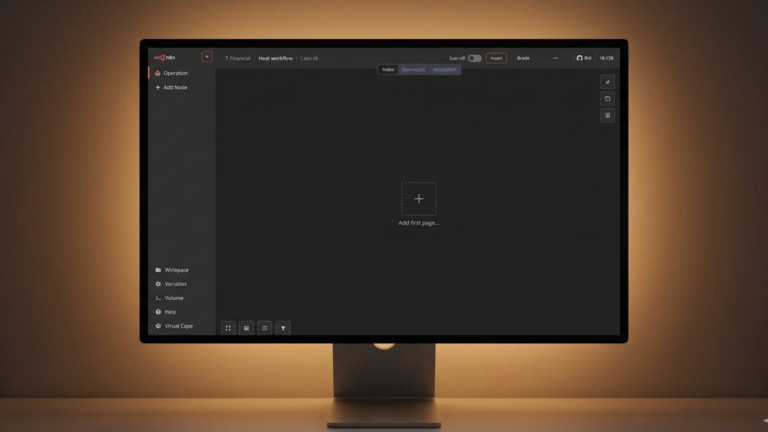
Once past that screen, the workflow canvas opens, and n8n is ready to use.
Managing the Container
To stop, start, restart, or follow logs:
docker compose stop        # Stop without removing
docker compose start       # Start again
docker compose restart     # Restart
docker compose logs -f     # Follow live logs
To update n8n when a new version is released:
docker compose pull
docker compose up -d
Your data persists in n8n_data across restarts and updates.
The Takeaway
Getting n8n running in Docker comes down to four things: create the data directory, fix the ownership to UID 1000, write the Compose file with an encryption key and timezone set, and run docker compose up -d. The permissions step is what separates a working install from a container that starts and immediately breaks.