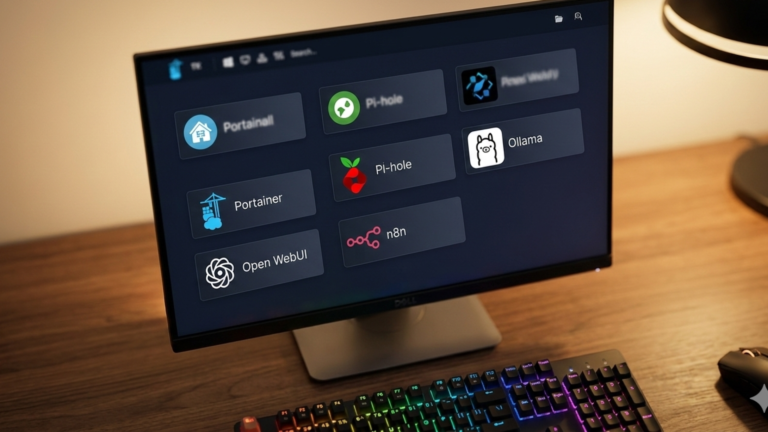
Heimdall is a self-hosted dashboard that collects all your homelab services into a single page of clickable tiles covered in the homelab hub post. This post covers only the Docker installation.
Prerequisites
You need Docker installed, and your user added to the Docker group. Verify both:
docker info
docker ps
You also need your user ID and group ID, which Heimdall uses to manage file permissions correctly:
id $USER
Note the uid and gid values you’ll use them in the next step.
Check port availability. Heimdall defaults to ports 80 and 443. If Pi-hole or another service is already using those, you’ll need to remap them:
docker ps --format "table {{.Names}}\t{{.Ports}}"
Method 1: docker run
Create a directory for persistent config:
mkdir -p ~/heimdall && cd ~/heimdall
Run the container:
docker run -d \
  --name heimdall \
  -e PUID=1000 \
  -e PGID=1000 \
  -e TZ="America/New_York" \
  -p 80:80 \
  -p 443:443 \
  -v $(pwd)/config:/config \
  --restart unless-stopped \
  ghcr.io/linuxserver/heimdall:latest
Replace PUID and PGID with your values from id $USER. PUID and PGID set file ownership so config files are writable by your user rather than root. Set TZ to your timezone. The correct string is in the tz database list. The volume mount $(pwd)/config:/config persists your dashboard configuration across container updates. If ports 80 or 443 are already in use, remap the host side to 8080 and 8443. You would then access Heimdall at http://YOUR_SERVER_IP:8080.
Verify it’s running:
docker ps | grep heimdall
docker logs heimdall
Method 2: Docker Compose
Create a project directory:
mkdir -p ~/heimdall && cd ~/heimdall
Create docker-compose.yml:
services:
  heimdall:
    image: ghcr.io/linuxserver/heimdall:latest
    container_name: heimdall
    environment:
      - PUID=1000
      - PGID=1000
      - TZ=America/New_York
    volumes:
      - ./config:/config
    ports:
      - 80:80
      - 443:443
    restart: unless-stopped
Update PUID, PGID, and TZ before starting. If ports 80 or 443 are taken, change the left side of the port mapping to 8080 and 8443.
Start it:
docker compose up -d
Verify:
docker compose ps
docker compose logs
Initial Setup
Open a browser and navigate to http://<YOUR_SERVER_IP>, or http://<YOUR_SERVER_IP>:8080 If you remapped the port.
On the first visit, Heimdall will prompt you to create an admin account. Set a username and a strong password, then click Create Account. You’ll land on an empty dashboard grid ready to be populated with your services.
Troubleshooting
If the container won’t start, check for port conflicts with docker ps Another service is likely occupying port 80 or 443. Remap as shown above. If you see permission errors in the logs, your PUID and PGID values don’t match your system user, recheck with id $USER and update the compose file. If the dashboard loads but changes don’t survive a container restart, the volume mount isn’t working. Confirm that ./config:/config is correctly mapped, and the config directory exists on your host.
The Takeaway
Heimdall is now running as a container on your Docker host with its configuration stored in a mounted volume. Every service in your homelab stack now has a single place to live: one URL, one login, one page.