Pi-hole is a DNS sinkhole that blocks ads and trackers at the network level, covered in the homelab hub post. This post covers only the Docker installation.
Prerequisites
You need Docker installed, and your user added to the Docker group. Verify both:
docker info
docker ps
You also need a static LAN IP on your Docker host. Pi-hole acts as your network’s DNS server, so devices need to find it at a consistent address. Set this via a DHCP reservation in your router.
Free Port 53 First
Port 53 is the standard DNS port. Pi-hole needs exclusive access to it. On most Ubuntu/Debian systems, systemd-resolved occupies it by default.
Check if port 53 is in use:
sudo lsof -i :53
If systemd-resolved is the culprit, free the port:
sudo systemctl stop systemd-resolved
sudo systemctl disable systemd-resolved
sudo rm /etc/resolv.conf
echo "nameserver 1.1.1.1" | sudo tee /etc/resolv.conf
This disables the local resolver and directs your host to Cloudflare DNS. Your Docker host can still resolve domains. Pi-hole will handle everything else.
Method 1: docker run
Create directories for persistent storage:
mkdir -p ~/pihole/{etc-pihole,etc-dnsmasq.d}
cd ~/pihole
Run the container:
docker run -d \
  --name pihole \
  -p 53:53/tcp \
  -p 53:53/udp \
  -p 80:80/tcp \
  -p 443:443/tcp \
  -e TZ="America/New_York" \
  -e FTLCONF_webserver_api_password="your-secure-password" \
  -e FTLCONF_dns_listeningMode="all" \
  -v "$(pwd)/etc-pihole:/etc/pihole" \
  -v "$(pwd)/etc-dnsmasq.d:/etc/dnsmasq.d" \
  --cap-add=NET_ADMIN \
  --cap-add=SYS_TIME \
  --restart=unless-stopped \
  pihole/pihole:latest
Ports 53/tcp and 53/udp are the DNS ports Pi-hole requires. Ports 80 and 443 expose the web interface. Set TZ to your timezone, the correct value is in the tz database list. FTLCONF_webserver_api_password sets your admin password, and FTLCONF_dns_listeningMode=all is required for Docker’s default bridge network. The two-volume mounts persist your configuration and blocklists across container updates. NET_ADMIN is required for network functions; SYS_TIME allows Pi-hole to sync time.
Verify it’s running:
docker ps | grep pihole
docker logs pihole
Method 2: Docker Compose
Create a project directory:
mkdir -p ~/pihole && cd ~/pihole
mkdir -p etc-pihole etc-dnsmasq.d
Create docker-compose.yml:
services:
  pihole:
    container_name: pihole
    image: pihole/pihole:latest
    ports:
      - "53:53/tcp"
      - "53:53/udp"
      - "80:80/tcp"
      - "443:443/tcp"
    environment:
      TZ: 'America/New_York'
      FTLCONF_webserver_api_password: 'your-secure-password'
      FTLCONF_dns_listeningMode: 'all'
    volumes:
      - './etc-pihole:/etc/pihole'
      - './etc-dnsmasq.d:/etc/dnsmasq.d'
    cap_add:
      - NET_ADMIN
      - SYS_TIME
    restart: unless-stopped
Start it:
docker compose up -d
Verify:
docker compose ps
docker compose logs
Initial Setup
Open a browser and navigate to:
http://<YOUR_SERVER_IP>/admin
Your browser may warn about a self-signed certificate if you use HTTPS and click through it. Log in with the password you set in FTLCONF_webserver_api_password. If you forgot to set a password or need to reset it, run docker exec -it pihole pihole setpassword.
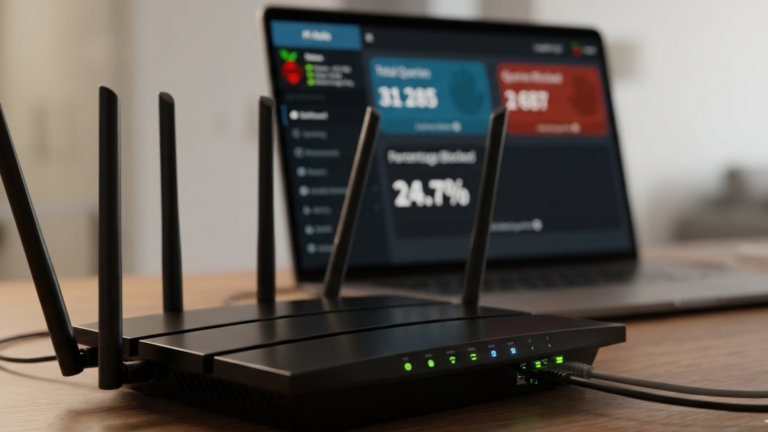
After login you’ll land on the Pi-hole dashboard showing query statistics, blocked percentages, and top domains. Pi-hole is now running and ready to receive DNS queries.
The last step is pointing your network at it. In your router’s DHCP settings, set the primary DNS to your Docker host’s static IP. Every device that renews its DHCP lease will start routing DNS through Pi-hole automatically. Set a secondary DNS, such as 1.1.1.1 So devices fall back to a working resolver if Pi-hole is unavailable.
Troubleshooting
If the container won’t start, port 53 is likely still occupied. Recheck the systemd-resolved steps above. If the web interface is unreachable, another container may be using port 80 or 443; check with docker ps. If Pi-hole is running but no queries appear in the dashboard, confirm FTLCONF_dns_listeningMode is set to all and that your router’s DNS is pointing at the correct IP.
The Takeaway
Pi-hole is now running as a container on your Docker host, intercepting DNS queries for every device on your network. The entire setup config, blocklists, and query logs live in the mounted volumes, so updates are a one-command operation. Your Docker environment now includes both a management layer with Portainer and a network layer with Pi-hole.