Portainer is a lightweight web UI that runs as a Docker container and lets you manage containers, images, volumes, and networks from your browser. Portainer was covered in the homelab hub post this post covers only the installation.
Prerequisites
You need Docker installed and your user added to the Docker group before continuing. Verify both are working:
docker info
docker ps
If either command fails, revisit the earlier posts in this series before proceeding.
Method 1: docker run
This method gets Portainer running with two commands.
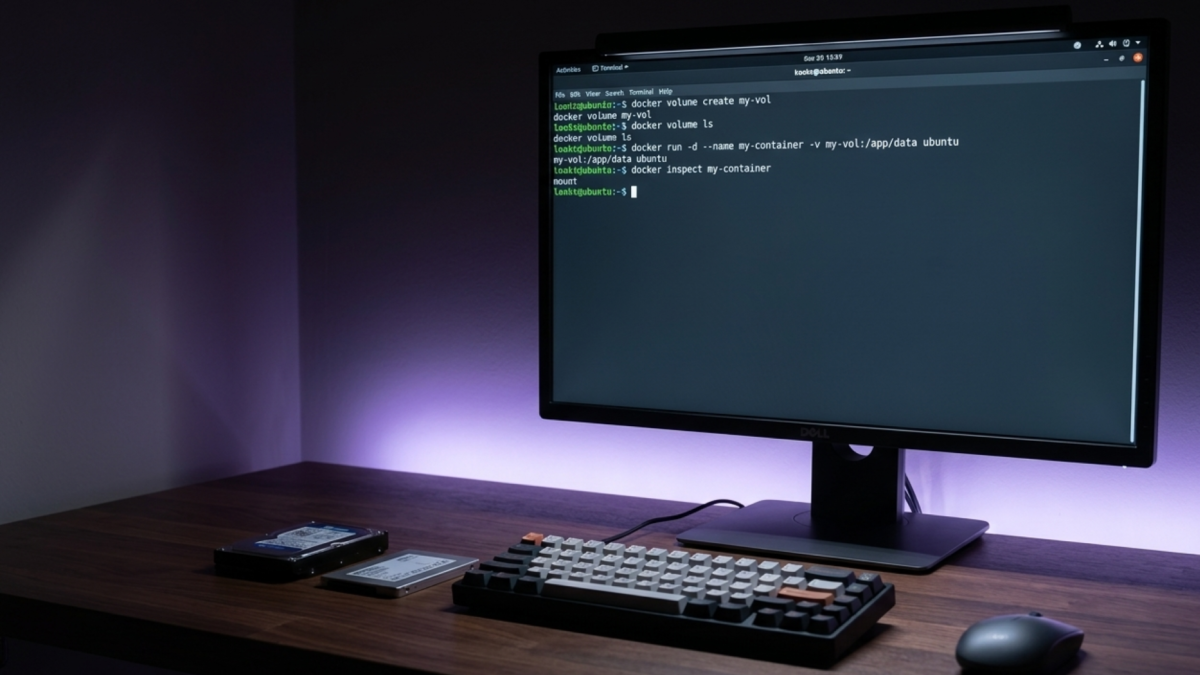
Create a volume for persistent data:
docker volume create portainer_dataThis volume stores your admin account and settings so they survive container restarts or updates.
Run the Portainer container:
docker run -d \
  -p 8000:8000 \
  -p 9443:9443 \
  --name portainer \
  --restart=unless-stopped \
  -v /var/run/docker.sock:/var/run/docker.sock \
  -v portainer_data:/data \
  portainer/portainer-ce:lts
The -d flag runs the container in the background. Port 9443 is the HTTPS dashboard; port 8000 is the Edge Agent port, included for completeness. --restart=unless-stopped keeps Portainer running through reboots unless you stop it manually. The two volume mounts do separate jobs the Docker socket gives Portainer visibility into your containers, and portainer_data persists your admin account and settings across restarts. The image tag portainer-ce:lts pulls the Long-Term Support Community Edition.
Verify it’s running:
docker ps | grep portainerMethod 2: Docker Compose
If you’re already managing your stack with Compose, this keeps everything consistent.
Create a directory and a docker-compose.yml file:
mkdir ~/portainer && cd ~/portainerPaste this into the docker-compose.yml file.
services:
  portainer:
    image: portainer/portainer-ce:lts
    container_name: portainer
    restart: unless-stopped
    ports:
      - "8000:8000"
      - "9443:9443"
    volumes:
      - /var/run/docker.sock:/var/run/docker.sock
      - portainer_data:/data

volumes:
  portainer_data:
Start it:
docker compose up -dVerify:
docker compose psInitial Setup
Open a browser and navigate to:
https://<YOUR_SERVER_IP>:9443Your browser will show a security warning because Portainer uses a self-signed SSL certificate by default. This is normal for a local homelab. Click through it Advanced → Proceed in Chrome, or Advanced → Accept the Risk in Firefox.
On the setup screen, create your admin account with a password of at least 12 characters, then click Create user.
Note: The setup page has a timeout. If it expires before you finish, restart the container with
docker restart portainerand refresh.
After login, Portainer will prompt you to connect an environment. Select Docker, then Local. This uses the Docker socket you mounted earlier. Click Connect and you’ll land on the main dashboard.
If the container exits immediately or you can’t see your containers, check the logs with docker logs portainer. If you can’t reach the dashboard at all, confirm port 9443 is open in your firewall and that you’re using https:// not http://. If Portainer loads but shows no containers, the Docker socket isn’t mounted check the -v /var/run/docker.sock line in your command or Compose file.
The Takeaway
Portainer is now running as a container on your Docker host, accessible from any browser on your local network. You have two ways to manage it going forward the docker run command for quick changes, or the Compose file for version-controlled consistency. Either way, your Docker environment now has a visual layer on top of everything you’ve built.