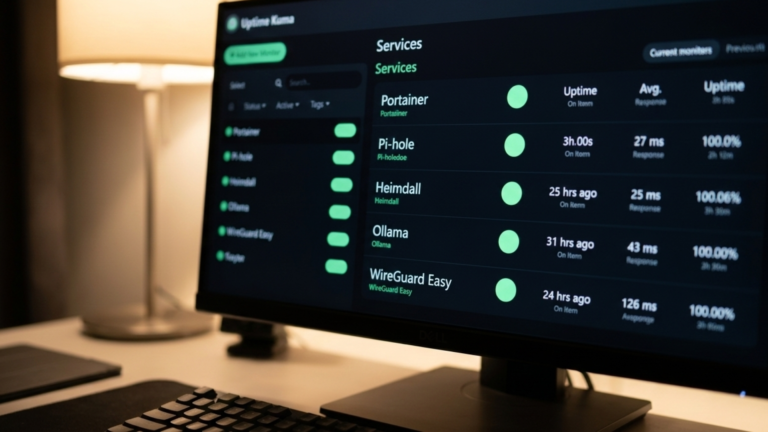
Uptime Kuma on Docker is a self-hosted monitoring tool that tracks the availability of your services and sends alerts when they fail, covered in the homelab hub post. This post covers only the installation.
Prerequisites
You need Docker installed, and your user added to the Docker group. Verify both:
docker info
docker ps
Check whether port 3001 is already in use. Uptime Kuma’s default web UI port:
sudo lsof -i :3001
If it is, you can remap the host port in the install step.
Method 1: docker run
Create a named volume for persistent data:
docker volume create uptime-kuma-data
Run the container:
docker run -d \
  --name uptime-kuma \
  -p 3001:3001 \
  -v uptime-kuma-data:/app/data \
  --restart unless-stopped \
  louislam/uptime-kuma:1
The image tag :1 pins to the latest 1.x release rather than :latest, which is the recommended approach for Uptime Kuma. The port mapping exposes the web UI change the left side to 3002:3001 if port 3001 is already taken. The volume mount at uptime-kuma-data:/app/data persists your monitors, settings, and history across container updates.
Verify it’s running:
docker ps | grep uptime-kuma
docker logs uptime-kuma
Method 2: Docker Compose
Create a project directory:
mkdir -p ~/uptime-kuma && cd ~/uptime-kuma
Create docker-compose.yml:
services:
  uptime-kuma:
    image: louislam/uptime-kuma:1
    container_name: uptime-kuma
    volumes:
      - ./data:/app/data
      - /var/run/docker.sock:/var/run/docker.sock:ro
    ports:
      - "3001:3001"
    restart: unless-stopped
    environment:
      - TZ=America/New_York
Set TZ to your timezone for accurate timestamps in logs and alerts. The /var/run/docker.sock mount is optional it allows Uptime Kuma to monitor Docker containers by name directly. Mount it read-only (:ro) to limit container permissions.
Start it:
docker compose up -d
Verify:
docker compose ps
docker compose logs
Initial Setup
Open a browser and navigate to http://<YOUR_SERVER_IP>:3001. On first visit, Uptime Kuma prompts you to create an admin account. Set a username and a strong password, then click Create. You’ll land on an empty dashboard with an Add New Monitor button. That’s the install complete, monitors and notifications are configured from here.
Troubleshooting
If the web UI is unreachable, confirm the container is running with docker ps and that nothing else is occupying port 3001. If the container won’t start, check the logs with docker logs uptime-kuma for specific errors. A port conflict is the most common cause. If you mounted the Docker socket but container monitoring isn’t working, confirm the socket path is correct and that your user is in the Docker group. If the admin account creation screen doesn’t appear on first visit, the data volume may have a permissions issue, check that ./data is writable by the container user (UID 1000).
The Takeaway
Uptime Kuma on Docker is now running on your Docker host with its monitoring database stored in the mounted volume. Every service in your homelab stack now has a single tool watching it, ready to alert you the moment something stops responding.