WireGuard Easy on Docker is a containerised WireGuard VPN server with a built-in web interface for managing clients covered in the homelab hub post. This post covers only the installation.
Prerequisites
You need Docker installed, and your user added to the Docker group. Verify both:
docker info
docker ps
You also need a static LAN IP on your Docker host set via a DHCP reservation in your router, a public IP or Dynamic DNS hostname pointing to your home network (use a free DDNS service like DuckDNS if your public IP changes), and UDP port 51820 forwarded on your router to your Docker host without this, remote clients cannot reach the VPN server.
Check whether port 51820 is already in use:
sudo lsof -i udp:51820
Generate a Password Hash
WireGuard Easy requires a hashed password rather than plaintext. Generate one before running the container:
docker run --rm -it ghcr.io/wg-easy/wg-easy wgpw 'your-secure-password'
The output will look like:
PASSWORD_HASH='$2a$12$abc123...'
Copy the full hash value. In Docker Compose, you can paste it as-is. In a docker run command, escape every $ by doubling it ($$).
Method 1: docker run
docker run -d \
  --name wg-easy \
  -e LANG=en \
  -e WG_HOST=vpn.yourdomain.com \
  -e PASSWORD_HASH='$$2a$$12$$abc123...' \
  -e PORT=51821 \
  -e WG_PORT=51820 \
  -v ~/.wg-easy:/etc/wireguard \
  -p 51820:51820/udp \
  -p 51821:51821/tcp \
  --cap-add=NET_ADMIN \
  --cap-add=SYS_MODULE \
  --sysctl="net.ipv4.ip_forward=1" \
  --sysctl="net.ipv4.conf.all.src_valid_mark=1" \
  --restart unless-stopped \
  ghcr.io/wg-easy/wg-easy
Replace WG_HOST with your public IP or DDNS hostname and PASSWORD_HASH with your generated hash. WG_HOST is the address remote clients use to reach your VPN server. Port 51820/udp is the WireGuard VPN port; UDP is required. Port 51821/tcp exposes the web UI. NET_ADMIN and SYS_MODULE Capabilities are required for network configuration and kernel module loading. The sysctl flag net.ipv4.ip_forward=1 enables traffic forwarding for VPN clients. The volume mount at ~/.wg-easy:/etc/wireguard the client configs and server keys across container updates.
Verify it’s running:
docker ps | grep wg-easy
docker logs wg-easy
Method 2: Docker Compose
Create a project directory:
mkdir -p ~/wireguard && cd ~/wireguard
Create docker-compose.yml:
services:
  wg-easy:
    image: ghcr.io/wg-easy/wg-easy:latest
    container_name: wg-easy
    environment:
      - LANG=en
      - WG_HOST=vpn.yourdomain.com
      - PASSWORD_HASH=$2a$12$abc123...
      - PORT=51821
      - WG_PORT=51820
      - WG_DEFAULT_DNS=1.1.1.1
      - WG_PERSISTENT_KEEPALIVE=25
    volumes:
      - ./wg-data:/etc/wireguard
    ports:
      - "51820:51820/udp"
      - "51821:51821/tcp"
    cap_add:
      - NET_ADMIN
      - SYS_MODULE
    sysctls:
      - net.ipv4.ip_forward=1
      - net.ipv4.conf.all.src_valid_mark=1
    restart: unless-stopped
Replace WG_HOST and PASSWORD_HASH With your values in Compose, $ characters do not need escaping. WG_DEFAULT_DNS sets the DNS server pushed to clients; point this at your Pi-hole IP if you want remote ad-blocking. WG_PERSISTENT_KEEPALIVE sends a keepalive packet every 25 seconds to maintain connections through NAT.
Start it:
docker compose up -d
Verify:
docker compose ps
docker compose logs
Open the Firewall
Allow UDP port 51820 through your server’s firewall:
# UFW
sudo ufw allow 51820/udp
sudo ufw reload

# firewalld
sudo firewall-cmd --permanent --add-port=51820/udp
sudo firewall-cmd --reload
Initial Setup
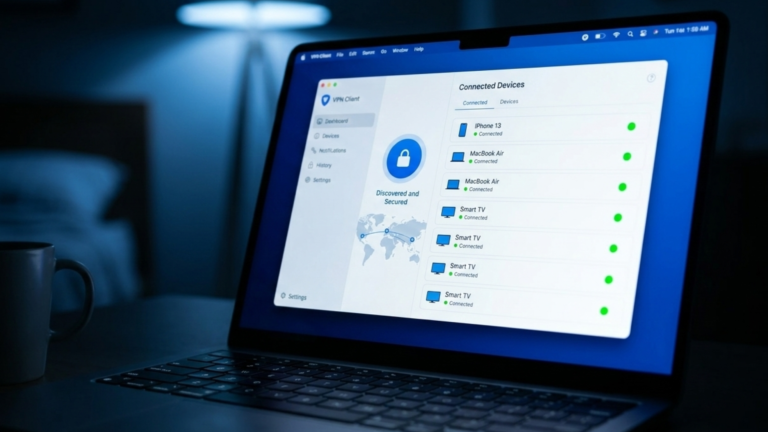
Open a browser and navigate to http://<YOUR_SERVER_IP>:51821. Log in with the password you used to generate the hash, not the hash itself. You’ll land on the WireGuard Easy dashboard showing an empty client list with a + New Client button.
Click + New Client, give the device a name, and click Create. The client appears in the list with a QR code icon for mobile devices and a download icon for desktop config files. Install the WireGuard app on your device, scan the QR code or import the config file, and toggle the tunnel on.
Troubleshooting
If the web UI is unreachable, check that the container is running with docker ps and that your server firewall allows TCP port 51821. If clients connect but have no internet access, IP forwarding is likely disabled. Verify with sysctl net.ipv4.ip_forward and confirm it returns 1. If clients can’t connect at all, UDP port 51820 is not reaching the container. Recheck your router’s port forwarding rule and confirm the protocol is set to UDP, not TCP. If the password is rejected, regenerate the hash and confirm you’re entering the original password, not the hash string.
The Takeaway
WireGuard Easy on Docker is now running on your Docker host with the VPN port exposed and the web UI available on your local network. Client configs and server keys are stored in the mounted volume, so the container is fully replaceable without losing your setup.