Creating a knowledge base in AnythingLLM takes three steps: create a workspace, upload your documents, and embed them so the AI can search and answer questions directly from your content. This post covers each step and what to check if something is not working.
What a Workspace Is
Each workspace in AnythingLLM is a self-contained silo; it holds its own documents, chat history, and settings. Nothing from one workspace leaks into another.
When you ask a question, AnythingLLM only searches documents inside the active workspace. A workspace for HR documents will never bleed context into a workspace for a research project. That isolation is deliberate, and it is what keeps answers accurate.
What You Need Before Starting
You need AnythingLLM running in Docker with an LLM configured in Settings and an embedder before a knowledge base will work.
Step 1: Create a Workspace
Open AnythingLLM in your browser. In the left sidebar, click the New Workspace button; it is either a pencil or a plus icon, depending on your version.
A prompt will ask you to name it. Name it after what it will hold, not a generic placeholder, HR_Policy_2025 or ProjectAlpha_Research tells you exactly what is inside. Workspace1 or Test tells you nothing when you are switching between five workspaces six months from now. Confirm it, and your workspace opens to an empty chat screen.
Step 2: Open the Document Upload Panel
Inside your new workspace, look for the Upload button or the paperclip icon, usually in the top-left area of the interface. Click it.
The document management panel opens. On one side is your workspace’s document library. On the other hand are the upload options.
Step 3: Upload Your Documents
AnythingLLM accepts file uploads (PDF, DOCX, TXT, CSV, PPTX), website URLs that it scrapes and cleans the text from, and raw text pasted directly into the input window. For a first knowledge base, a PDF is the cleanest starting point: a policy document, a research paper, or a report you query regularly.
Once selected, the file appears in the panel as a listed item. It is not searchable yet. That happens in the next step.
Step 4: Save and Embed
This is the step most first-time users miss. Uploading a file and embedding it are two separate actions.
With your file listed in the panel, click Save and Embed. Do not click “Move to Workspace” that pulls the file in without processing it, so the AI cannot search it.
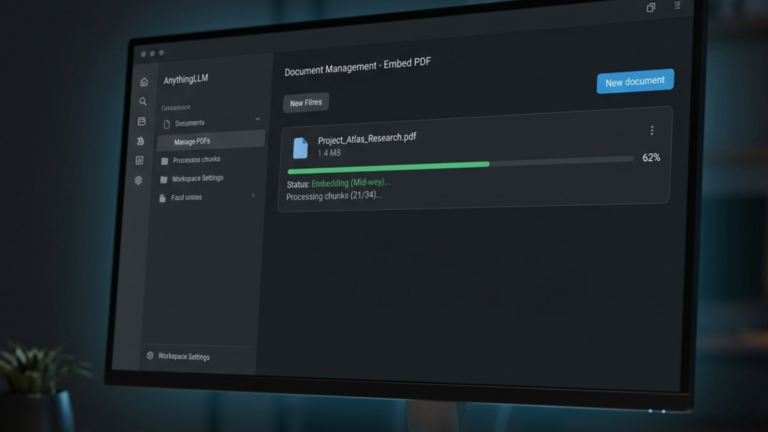
When you click Save and Embed, your document’s text is split into smaller chunks, each chunk is sent to your embedder, which converts it into a vector, a numerical representation of the text’s meaning, and those vectors are stored in the local vector database (LanceDB by default).
This vector storage is what makes intelligent search possible. When you ask a question, AnythingLLM searches the vectors, retrieves the most relevant chunks, and passes them to your LLM along with your question. The AI answers from your document, not from its general training data.
A progress bar appears during embedding. A small text file finishes in seconds. A 200-page PDF may take a minute or two to open, depending on your hardware.
You can embed multiple documents into the same workspace. The AI searches across all of them simultaneously.
Step 5: Test the Knowledge Base
Type a question in the chat box that can only be answered from the embedded document. Be specific when you upload an HR policy; ask, “What is the notice period for resignation?” rather than something vague. If you uploaded a financial report, ask “What was total revenue in Q3?” A precise question makes it easy to confirm that the answer came from your document rather than the model’s general training data.
After the response, look for a citation icon or a number in brackets. Click it. A side panel opens, showing the exact passage the AI used to generate the answer. If the citation matches the source, your knowledge base is working correctly.
If the answer is vague or the AI says it cannot find the information, check two things: confirm the document was embedded and not just uploaded, and verify your embedder is properly configured in Settings.
Name Your Files Before You Upload
The AI can see filenames, and descriptive names improve retrieval accuracy. AcmeCorp_RemoteWork_Policy_2025.pdf gives the model context before it reads a single word. document_final_v2.pdf gives it nothing. Rename files before uploading. For documents you update regularly, add a date stamp, which keeps versions distinct and makes it easier to remove outdated files from the workspace later.
The Takeaway
Creating a working knowledge base in AnythingLLM comes down to three actions: create a workspace with a clear name, upload your documents, and embed them using Save and Embed. Once embedded, every document in the workspace becomes searchable by the AI, and every answer traces back to a specific passage you can verify in the citation panel.