Set up AnythingLLM with Docker to get a self-hosted AI workspace that can ingest documents, run RAG queries, and connect to any local or cloud LLM all from a browser interface running entirely on your own hardware.
Unlike Open WebUI, which is a chat frontend for Ollama, AnythingLLM is built around workspaces and documents. Each workspace holds its own set of uploaded files, vector embeddings, and chat history. The application handles the full RAG pipeline internally you upload a document, AnythingLLM processes and indexes it, and you query it directly in chat.
What You Need Before Starting
You need Docker installed and running, the ability to run Docker commands without sudo, and at least 2 GB of RAM and 10 GB of free disk space. A connected LLM local or cloud is configured after the container is running, not before.
Create the Storage Directory
export STORAGE_LOCATION=$HOME/anythingllm
mkdir -p $STORAGE_LOCATION
touch "$STORAGE_LOCATION/.env"
AnythingLLM stores all state inside /app/server/storage inside the container without mounting that path to a host directory, every container update would wipe your workspaces and documents. This directory is where everything persists: workspaces, uploaded documents, vector embeddings, and configuration. The .env file is empty for now it exists so Docker can mount it cleanly on first run.
Run the Container
docker run -d \
  -p 3001:3001 \
  --cap-add SYS_ADMIN \
  -v ${STORAGE_LOCATION}:/app/server/storage \
  -v ${STORAGE_LOCATION}/.env:/app/server/.env \
  --name anythingllm \
  --restart unless-stopped \
  mintplexlabs/anythingllm
The image is mintplexlabs/anythingllm the source and release notes live on the AnythingLLM GitHub repo if you want to check the latest tag or review what changed before pulling.
The --cap-add SYS_ADMIN flag grants the container elevated kernel capabilities. AnythingLLM requires this for its built-in web scraper, which uses a sandboxed browser process that needs those permissions to run. If you will never use the web scraper, you can omit it but most deployments leave it in.
The two volume mounts do the work: the first persists all application data, the second mounts the .env file so you can manage advanced configuration from the host without entering the container.
Verify It Is Running
docker ps | grep anythingllm
The container should show as Up. Then open a browser and go to:
http://YOUR_SERVER_IP:3001
You will land on the first-time setup screen. The first account you create becomes the admin account use a strong password, especially on a networked machine.
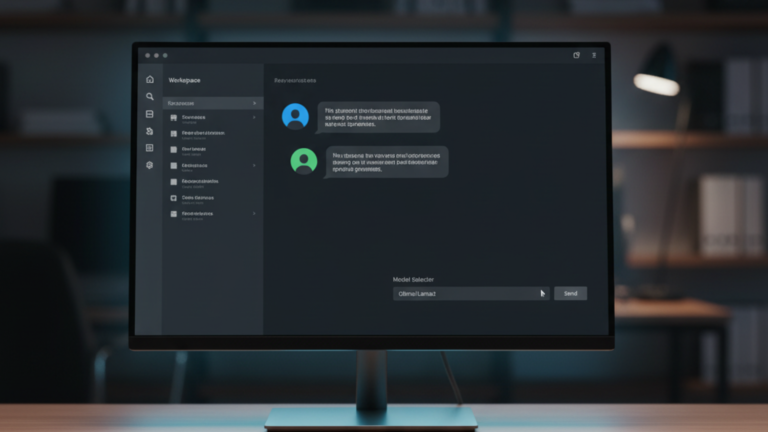
Once logged in you will see the main dashboard with a prompt to create your first workspace. A workspace is an isolated environment with its own document set, embeddings, and chat history each one operates independently, so you can have separate workspaces for different projects or topics.
Fix Permissions If Needed
AnythingLLM’s container runs as UID 1000. If your host storage directory is owned by a different user, the container will fail to write files and the interface will show errors on document upload. Fix it with:
sudo chown -R 1000:1000 $HOME/anythingllm
Run this once after the first start if you see permission errors, then restart the container:
docker restart anythingllm
The Takeaway
AnythingLLM is now running in Docker with persistent storage mounted to $HOME/anythingllm. Your workspaces, documents, and settings will survive container updates because they live on the host, not inside the container. The admin account is created, the dashboard is accessible, and the application is ready to connect to an LLM and ingest documents.