Set up Open WebUI with Docker to add a browser-based chat interface to your Ollama instance conversation history, model switching, and document uploads, all running on your own hardware.
If you have Ollama already running in Docker, Open WebUI connects to it over Docker’s internal network using the container name as the hostname. No IP addresses, no extra configuration. One additional service in your Compose file is all it takes.
What You Need Before Starting
You need Ollama running in Docker with at least one model pulled, and the project directory from that setup at ~/homelab/ollama. If you have not done that yet, start with the Ollama install guide first.
Update the Compose File
Open your existing ~/homelab/ollama/docker-compose.yml and add the open-webui service:
services:
  ollama:
    image: ollama/ollama:latest
    container_name: ollama
    restart: unless-stopped
    ports:
      - "11434:11434"
    volumes:
      - ./ollama_data:/root/.ollama
    environment:
      - TZ=America/New_York

  open-webui:
    image: ghcr.io/open-webui/open-webui:main
    container_name: open-webui
    restart: unless-stopped
    ports:
      - "3000:8080"
    volumes:
      - ./webui_data:/app/backend/data
    environment:
      - OLLAMA_BASE_URL=http://ollama:11434
      - WEBUI_AUTH=true
      - TZ=America/New_York
    depends_on:
      - ollama
Create the Data Directory
mkdir -p ~/homelab/ollama/webui_data
This directory stores everything Open WebUI needs to persist: user accounts, conversation history, and settings. Mapping it to a host directory means a container rebuild will not wipe your chat history.
Restart the Stack
cd ~/homelab/ollama
docker compose down
docker compose up -d
Bringing the stack down and back up ensures the new service is created with the correct network, not just restarted in place.
Verify Both Containers Are Running
docker compose ps
Both ollama and open-webui should show as Up. Open WebUI takes about 20–30 seconds to initialize on first start. Check the logs if it is slow:
docker compose logs open-webui
When it is ready, the logs will show Uvicorn running on http://0.0.0.0:8080.
Access the Interface
Open a browser and go to:
http://YOUR_SERVER_IP:3000
The first time you load it, you will land on a registration page. The first account created automatically becomes the admin account use a real password, especially if other people can reach this server on your network.
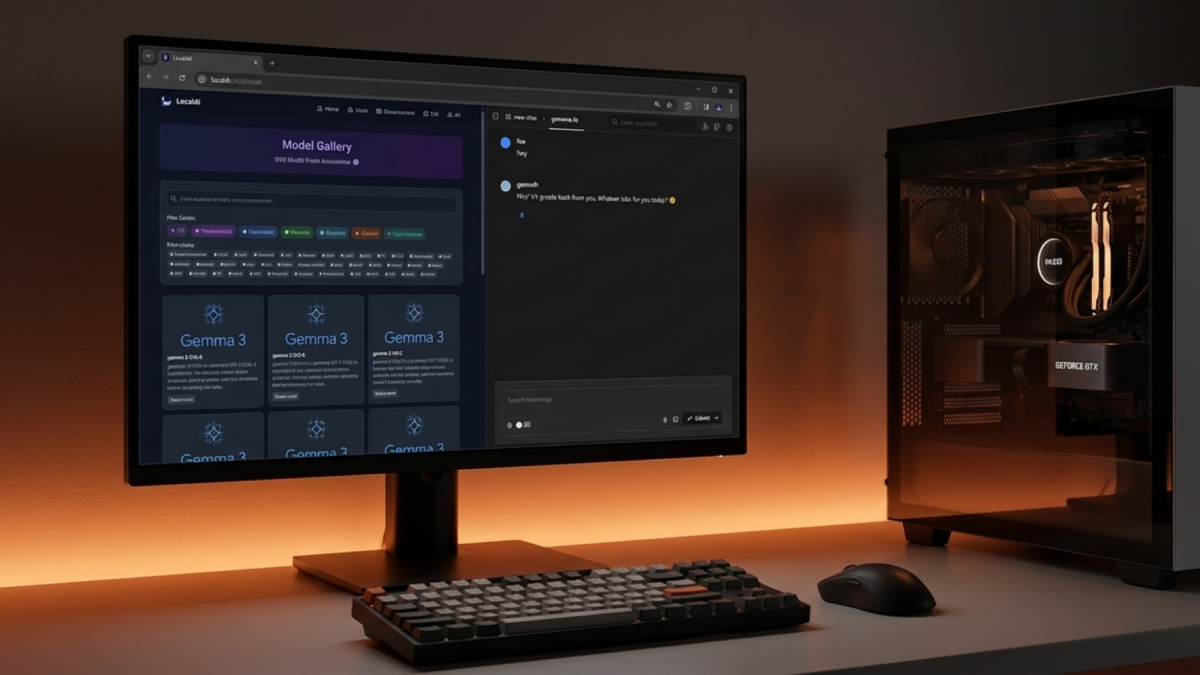
Once logged in, your Ollama models will appear in the model selector at the top of the chat window. Select one and start a conversation.
If no models appear, go to Admin Panel → Settings → Connections and verify the Ollama URL shows http://ollama:11434. The connection uses Docker’s internal DNS ollama resolves to the Ollama container because both services are defined in the same Compose file and share the same default network.
What WEBUI_AUTH=true Does
With authentication enabled, every user needs an account to access the interface. The admin can create additional accounts from the Admin Panel. If you are running this on a trusted local network for personal use only and want to skip the login screen, set WEBUI_AUTH=false but leave it enabled if anyone else can reach the server.
The Takeaway
Open WebUI is now running alongside Ollama in Docker, connected over Docker’s internal network, with conversation history and user data persisting in ./webui_data. You can switch models, save conversations, and access everything from any browser on your network without touching a terminal.